


Description
Why This Employee Monthly Schedule Template Outperforms a Basic Spreadsheet
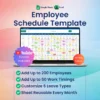
A basic blank sheet forces you to repeatedly type out shift hours, supervisor assignments, and leave categories for every single day. This template saves layout setup time by providing built-in dropdown inputs anchored to your specific operational criteria. It enforces structural uniformity across your entire plan, ensuring that anyone managing the schedule uses the exact same variables without altering core data fields.
Smart Automation and Workflow Features
The background configuration streamlines your operational logistics through targeted data menus. You simply build your base settings once, and those custom rules instantly feed into your daily and monthly planning dashboards. Assigning regular rotations or documenting sudden time off requires no manual data entry; you just use the dropdown menus to update your master calendar view.
A Guided Tour of Your Spreadsheet
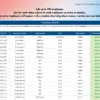
► Guide: Practical onboarding notes outlining how to manage your master staff view.
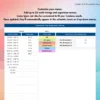
► Menus: Your operational control sheet where you define custom work timings, supervisor names, and leave types.
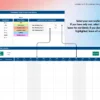
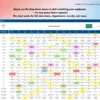
► Example Sheet: A fully populated workspace providing a visual reference for active employee assignments and rotations.
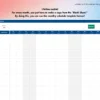
► Blank Sheet: The master template layer that you copy to start fresh monthly planning periods for up to 200 staff members.
System Requirements and Compatibility
✓ Works on Google Sheets across web browsers, mobile apps, PC, tablets, iPad, laptops, Mac, and Windows.
✓ Works on Microsoft Excel version 2016 and newer for both Mac and Windows.
✗ Not compatible with Numbers, LibreOffice, or OpenOffice.
Frequently Asked Questions
How many staff profiles can I track inside this schedule?
The underlying framework supports up to 200 employees across your monthly and daily planning layouts.
Can I modify the preset dropdown options for my specific store requirements?
Yes, you can fully customize the menus tab to reflect your own work timings, supervisor names, and leave types.
How do I begin a new scheduling period when a month ends?
You simply make a copy of the blank sheet to generate a completely fresh, unpopulated grid for the upcoming month.


Reviews
There are no reviews yet.